

Get a Call Back
How To Set up Shipping and Delivery on Shopify?
Feb 17, 2026
0 min read
1.6k views
What is Shipping?
Shipping refers to the process of determining and managing the delivery of products from an online store to the customers who have placed orders.
What is Delivery?
Delivery refers to the final stage of the order fulfillment process, where the purchased products are physically transported and handed over to the customer. Delivery involves shipping the products to the customer’s designated address or allowing them to pick up the items from a specified location.
Shipping & Delivery in Shopify
Shopify provides options to define shipping rates based on different criteria, such as weight, price, or quantity of the items in the cart. You can create shipping rate tiers or offer free shipping for orders above a certain value.
Shopify also offers a feature called Local Delivery that allows merchants to offer delivery services to customers within a specific geographic area. Merchants can define their delivery zones and set the rates for local delivery. This is particularly useful for businesses that want to provide a faster and more personalized delivery experience for local customers.
Set up Shipping Rates on Shopify:
Create Flat Rate Shipping in Shopify
Step 1: From Shopify Admin, go to Settings > Shipping and delivery.
Step 2: Click Manage for the Shipping profile for which you want to add a shipping rate.

Step 3: Click Add rate button for the Shipping zone you want to add shipping rates.

Step 4: Select the Set up your own rates option. Add the Rate name and Price. Also, Add Conditions based on item weight or order price. Then click Done.
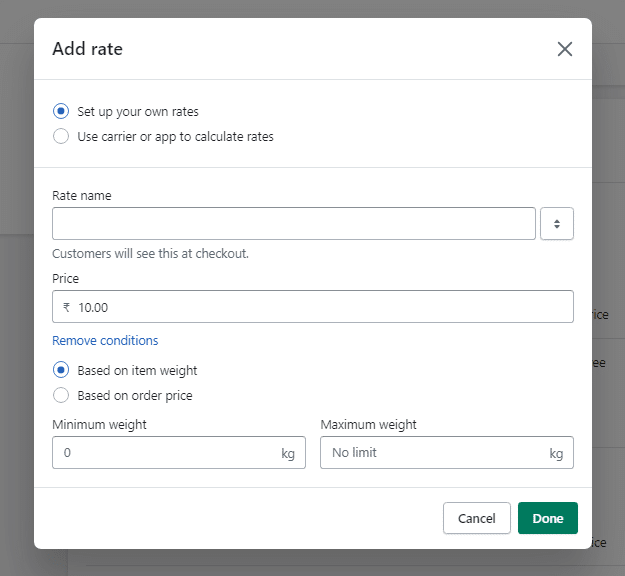
At last, click on the Save button.
Create Calculated Shipping Rates in Shopify
Step 1: From Shopify Admin, go to Settings > Shipping and delivery.
Step 2: Click Manage for the Shipping profile for which you want to add a shipping rate.
Step 3: Click Add rate button for the Shipping zone you want to add calculated shipping rates.
Step 4: Select the Use carrier or app to calculate rates option.
- Choose the shipping service from the drop-down menu.
- Select the Services you want to provide as options in the checkout.
- Choose whether to automatically show new shipping services to customers when they become available in the Future services section.
- Add the Handling fee to be added to the calculated shipping rate.
Then click Done.

At last, click on the Save button.
Markup or Discount Calculated Rates in Shopify
Step 1: From Shopify Admin, go to Settings > Shipping and delivery.
Step 2: Click Manage for the Shipping profile for which you want to add a shipping rate.
Step 3: From the available rates, click on the … symbol and select Edit rate.
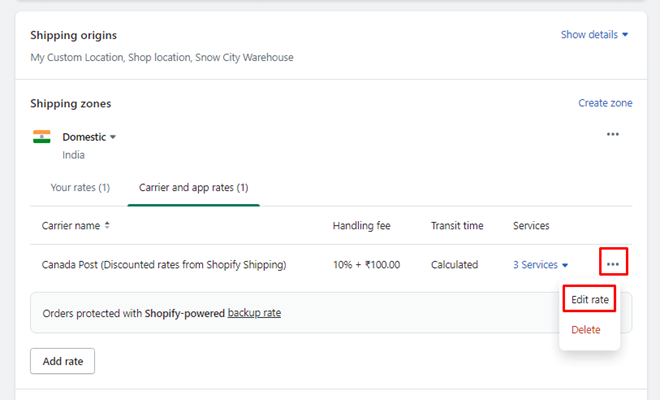
Step 4: In the Handling Fee section, set the rate adjustments in the Percentage and Flat amount fields. To give a discount to customers, enter a negative value in the Percentage field. Then click Done.
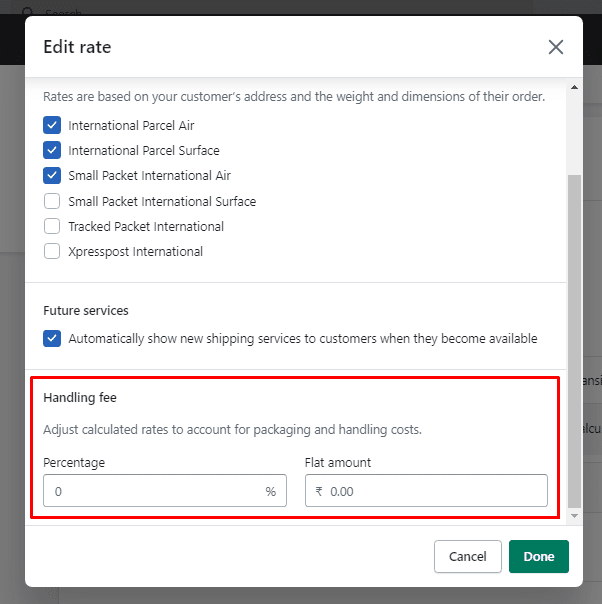
At last, click on the Save button.
Create Free Shipping Rate in Shopify
Step 1: From Shopify Admin, go to Settings > Shipping and delivery.
Step 2: Click Manage for the Shipping profile for which you want to add a shipping rate.
Step 3: Click Add rate button for the Shipping zone you want to add shipping rates.
Step 4: Add the Rate name and Price should be “0” to offer free shipping.
- Apply free shipping over a certain weight by adding conditions based on item weight.
- Apply free shipping over a certain value by adding conditions based on the order price.
Then click Done.
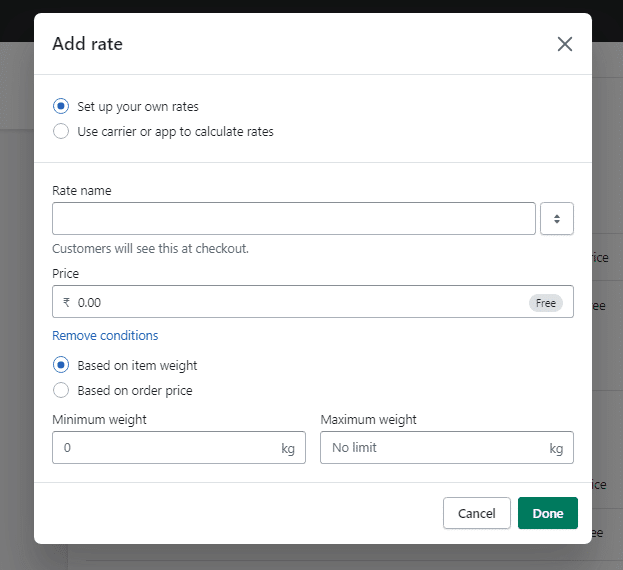
At last, click on the Save button.
Edit Shipping Rates in Shopify
Step 1: From Shopify Admin, go to Settings > Shipping and delivery.
Step 2: Click Manage for the Shipping profile for which you want to add a shipping rate.
Step 3: From the available rates, click on the … symbol against the rate you want to edit and select Edit rate.
Step 4: Make the necessary changes and click on Done.
At last, click on the Save button.
Delete Shipping Rates in Shopify
Step 1: From Shopify Admin, go to Settings > Shipping and delivery.
Step 2: Click Manage for the Shipping profile for which you want to add a shipping rate.
Step 3: From the available rates, click on the … symbol against the rate you want to delete and select Delete rate.
At last, click on the Save button.
Set up Delivery Rates On Shopify:
Set up the local delivery option in Shopify
Step 1: From Shopify Admin, go to Settings > Shipping and delivery.
Step 2: In the Local delivery section, select the delivery location.
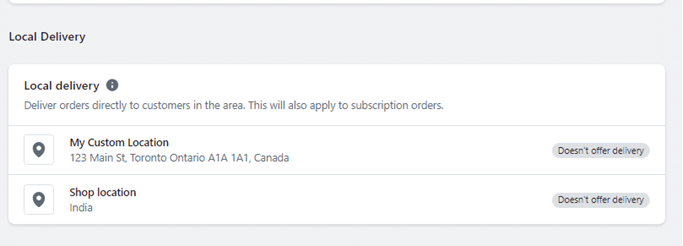
Step 3: Tickmark the This location offers local delivery checkbox.

Step 4: In the Delivery area section, apply the following settings
- Define Delivery area using Postal codes or Delivery radius methods.
- Add Minimum order price and Delivery price.
- Include Delivery information about your local delivery services for customers.

At last, click on the Save button.
Add Conditional Pricing for Delivery in Shopify
Step 1: From Shopify Admin, go to Settings > Shipping and delivery.
Step 2: In the Local delivery section, select the delivery location.
Step 3: Tickmark the This location offers local delivery checkbox.
Step 4: In the Delivery area section, click on Add conditional pricing.
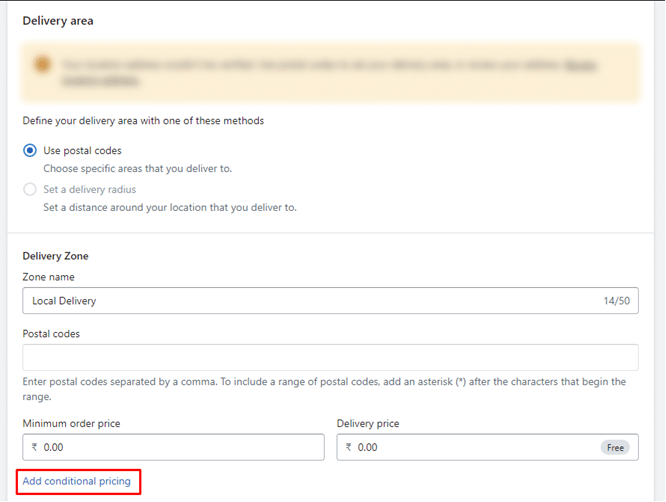
Step 5: Add the Order limit and Delivery price for rule.

At last, click on the Save button.
Add Delivery Zones in Shopify
Step 1: From Shopify Admin, go to Settings > Shipping and delivery.
Step 2: In the Local delivery section, select the delivery location.
Step 3: Tickmark the This location offers local delivery checkbox.
Step 4: In the Delivery area section, click on Create new delivery zone.
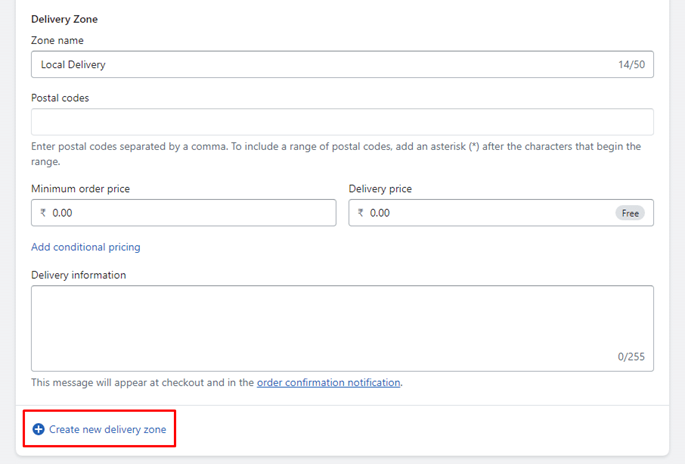
Step 5: Add delivery zone details
- Enter the Delivery zone name.
- Define Delivery area using Postal codes or Delivery radius methods.
- Add Minimum order price and Delivery price.
- Include Delivery information about your local delivery services for customers.
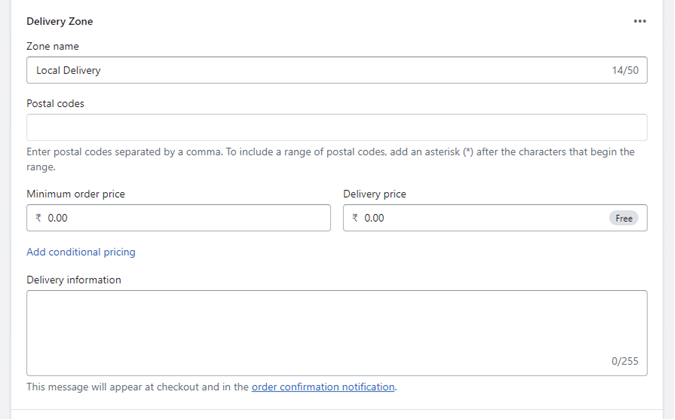
At last, click on the Save button.
Final Say:
This was all about Shopify Shipping and Delivery settings. If you need further customization on Shipping and Delivery for your Shopify store Hire experienced Shopify Developers. Share the tutorial with your friends and help them learn about shipping and delivery in Shopify.
+
Companies Transformed
%
Client Satisfaction
/
Expert Support
Join the brands already working with Base2Brand
Continue Reading
No blogs found 🔍
Our Trusted Partners Collaborate Seamlessly To Drive Mutual Success